Add and remove rules safely
The Policy page lists the rules in the order USBGuard evaluates them. The first rule that matches a device decides, which is why the list is numbered and cannot be re-sorted.
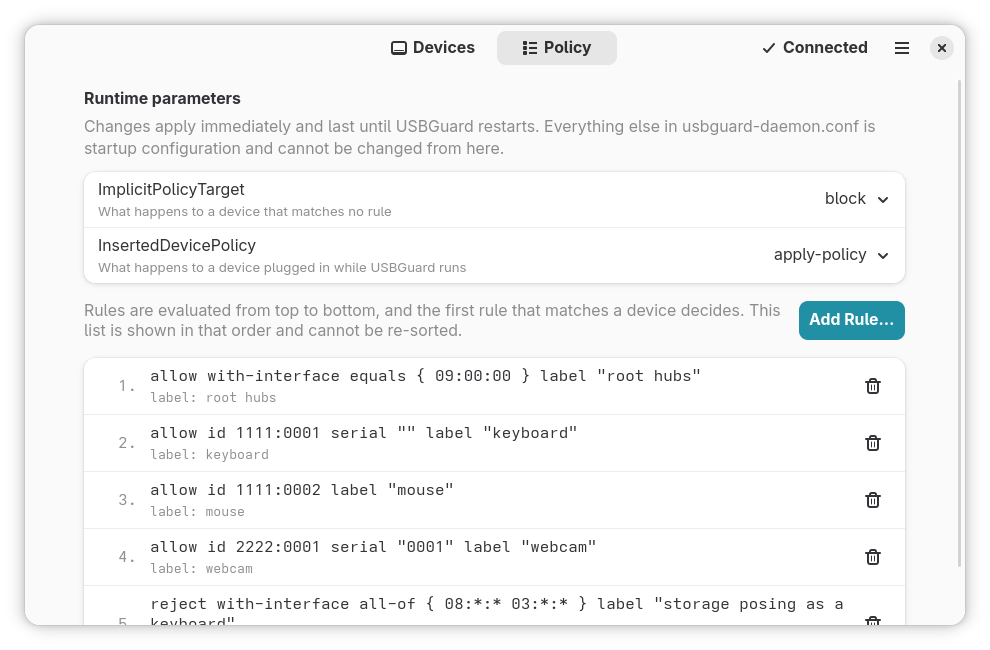
Add a rule
Click Add Rule….
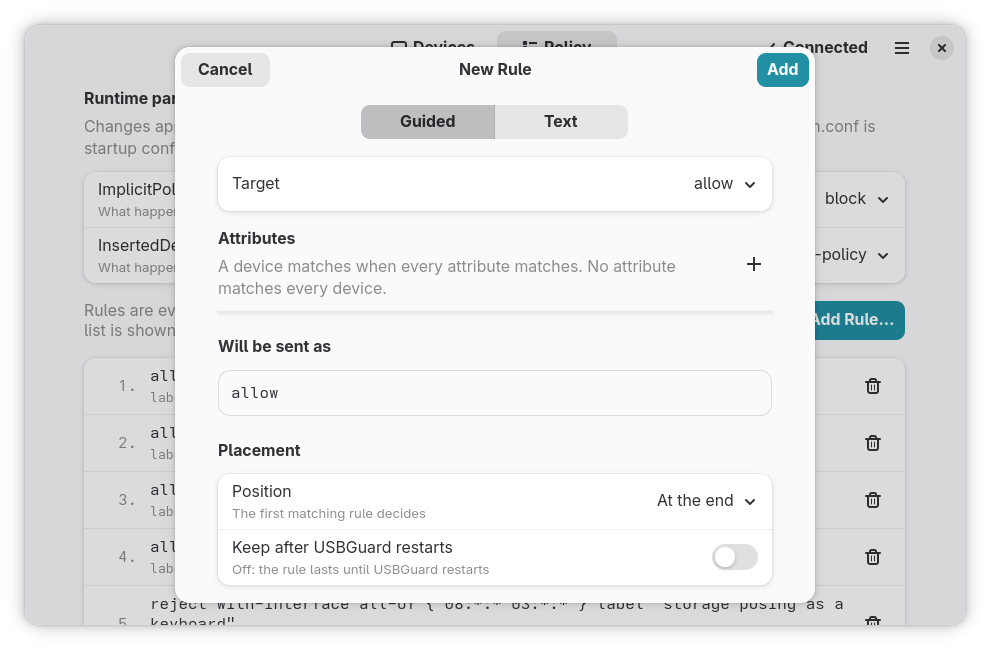
- Guided mode: choose the target (allow, block, reject), then add attributes one at a time —
id(vendor:product, e.g.1234:5678),name,serial,via-port,with-interface(class:subclass:protocol, e.g.08:06:50for mass storage), and the rest. Each value is checked for its own shape as you type. - Text mode: type the rule in
usbguard-rules.conf(5)syntax. An error puts a caret under the offending character.
Will be sent as shows the exact text USBGuard will receive. An invalid rule never leaves the program and never raises a password prompt.
Position decides where the rule goes: at the end, or after a specific rule. Keep after USBGuard restarts decides whether it is written to the policy or kept in memory only.
Remove a rule
Click the bin icon on the rule and confirm. USBGuard numbers rules by position, and the numbers shift whenever the ruleset changes — including when someone else edits it from a terminal. So the program does not remove "rule 7": it re-reads the ruleset, finds the rule by its exact text, and removes that.
- If the rule is gone — removed elsewhere in the meantime — nothing is removed, and you are told.
- If several rules have exactly the same text, you are asked which one, by position.
Runtime parameters
At the top of the page:
ImplicitPolicyTarget— what happens to a device that matches no rule;InsertedDevicePolicy— what happens to a device plugged in while USBGuard runs.
A change asks for confirmation, applies immediately, and lasts until USBGuard restarts.